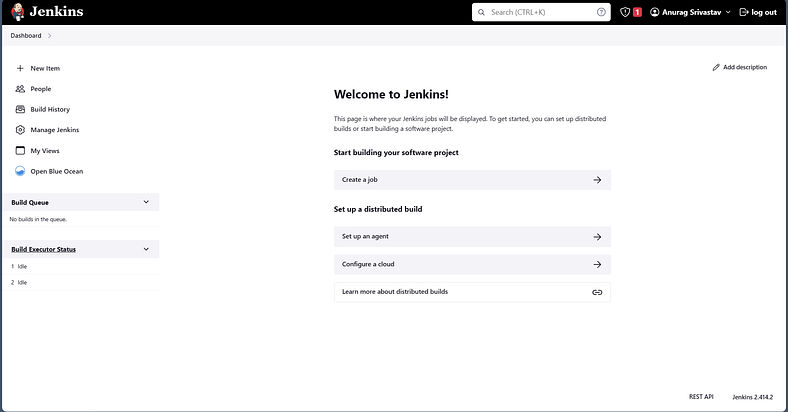
Running Jenkins Instance as a Docker Container

DevOps Engineer
About Jenkins
*Jenkins is an open-source automation server used for building, testing and deploying software. It allows developers to automate various parts of the software development process, such as Continuous Integration and Continuous Delivery (CI/CD), making it easier to deliver high-quality software more efficiently.*
As per best practices, Jenkins should be setup as a package inside a Machine, but we can also utilize Docker to setup Jenkins and run it as a Docker Container inside the Machine.
Running Jenkins as a Docker Container saves time and resources of the Machine, and it is completely isolated from the Machine’s configuration. This is quite useful in case of early-stage development processes.
I’m using an EC2 instance of Ubuntu VM.
Let’s get started.
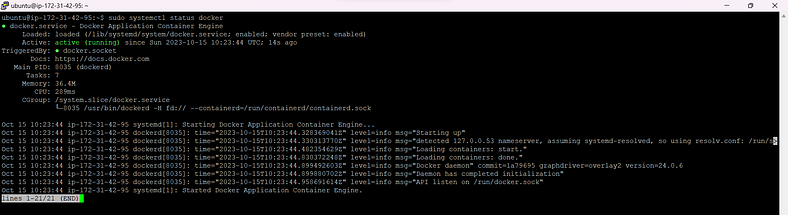
1. Docker Engine should be up and running in the Machine as a prerequisite.
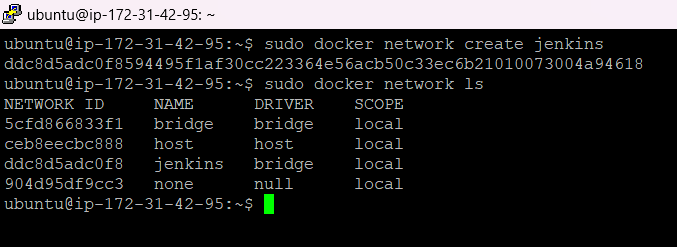
2. Create a separate Docker Network.
sudo docker network create jenkins
If we are running Jenkins as Docker Container, it requires DinD to be setup first (Docker in Docker) in order to run Docker Commands inside Docker container.
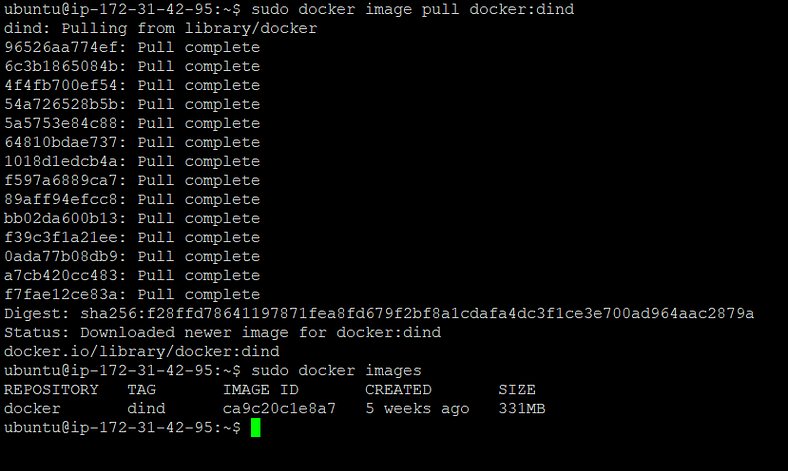
3. Pull the DinD image locally.
sudo docker image pull docker:dind
4. Run the DinD Container by passing the mentioned arguments.
sudo docker run --name jenkins-docker --rm -d --privileged --network jenkins --network-alias docker --env DOCKER_TLS_CERTDIR=/certs --volume jenkins-docker-certs:/certs/client --volume jenkins-data:/var/jenkins_home -p 2376:2376 docker:dind --storage-driver overlay2
5. Check if the DinD Container is running.
sudo docker ps

Create a customized Jenkins Image out of official one, build it locally.
6. Create the Dockerfile and save it with the same name “Dockerfile”.
FROM jenkins/jenkins:2.414.2-jdk17
USER root
RUN apt-get update && apt-get install -y lsb-release
RUN curl -fsSLo /usr/share/keyrings/docker-archive-keyring.asc https://download.docker.com/linux/debian/gpg
RUN echo "deb [arch=$(dpkg --print-architecture) signed-by=/usr/share/keyrings/docker-archive-keyring.asc] https://download.docker.com/linux/debian $(lsb_release -cs) stable" > /etc/apt/sources.list.d/docker.list
RUN apt-get update && apt-get install -y docker-ce-cli
USER jenkins
RUN jenkins-plugin-cli --plugins "blueocean docker-workflow"

7. Build the Docker Image using above Dockerfile.
sudo docker build -t jenkins-custom:v1 .
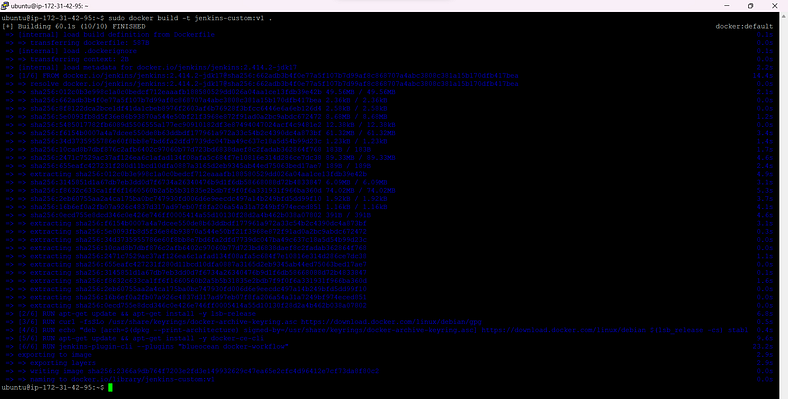
8. Run the Custom Jenkins Image which we just created.
sudo docker run --name jenkins-custom --restart=on-failure -d --network jenkins --env DOCKER_HOST=tcp://docker:2376 --env DOCKER_CERT_PATH=/certs/client --env DOCKER_TLS_VERIFY=1 -p 8080:8080 -p 50000:50000 --volume jenkins-data:/var/jenkins_home --volume jenkins-docker-certs:/certs/client:ro jenkins-custom:v1
9. After running the above command, Jenkins container will also be up and running along with DinD container.
sudo docker ps

10. Check the Jenkins Container logs and copy the temporary password from the logs.
sudo docker logs <container-id>
Container ID will be visible in the first column when you hit the “ps” command.

11. Done. Now browse the Jenkins UI using the localhost/assigned IP of the Machine. Jenkins will be accessible on port 8080.
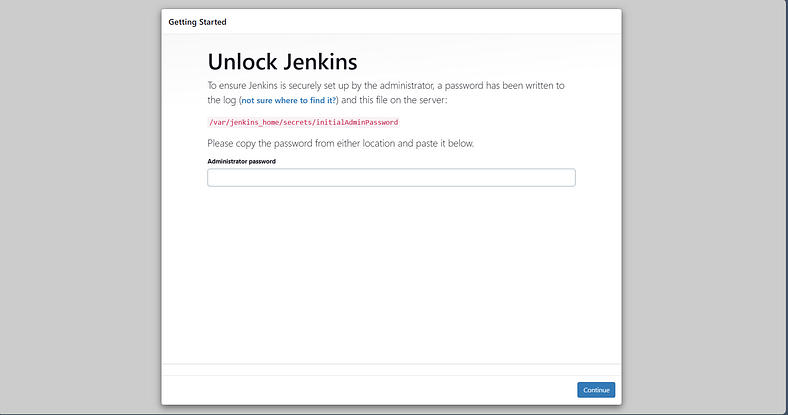
12. Paste the copied password and click on Continue. It will ask to Install Suggested Plugins or Manually select the plugins to install. We can select according to our use-case.
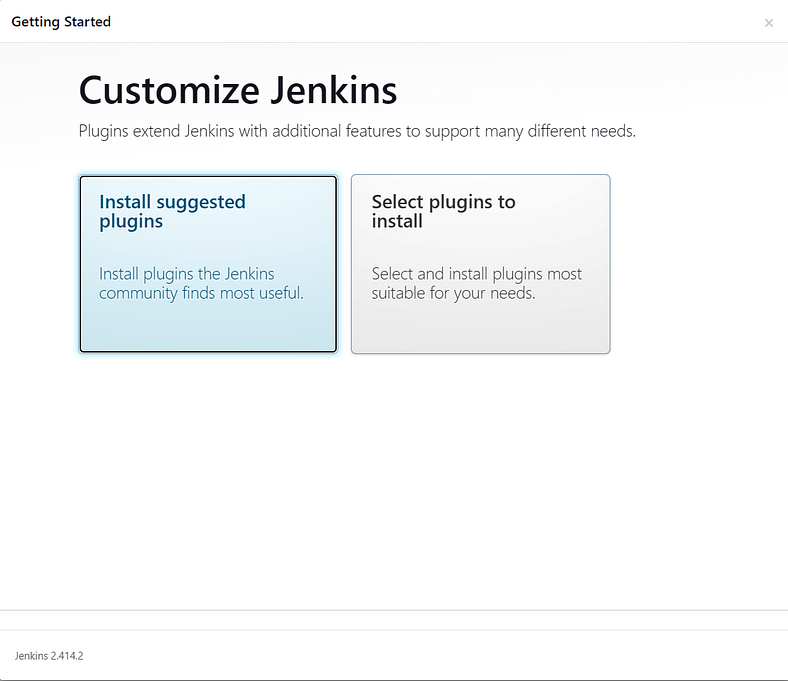
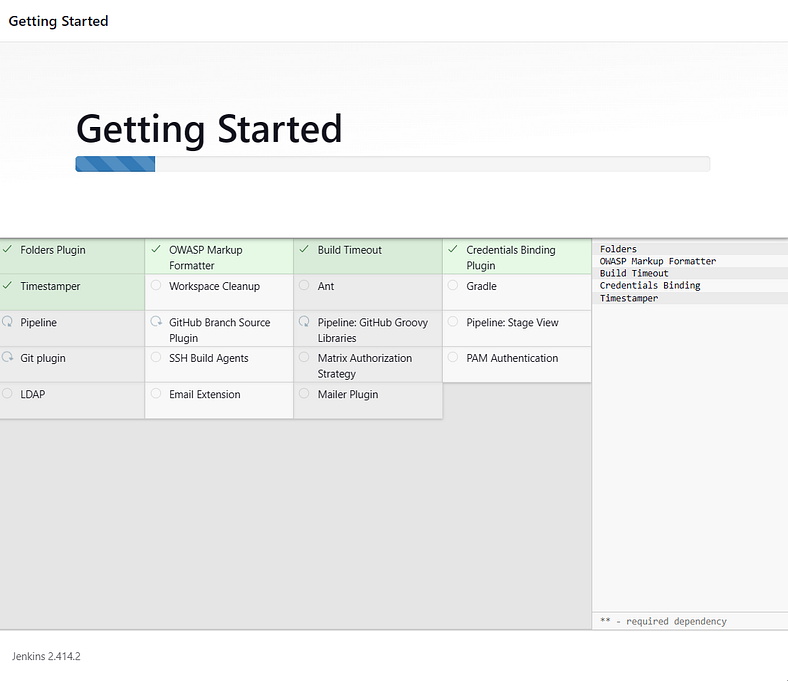
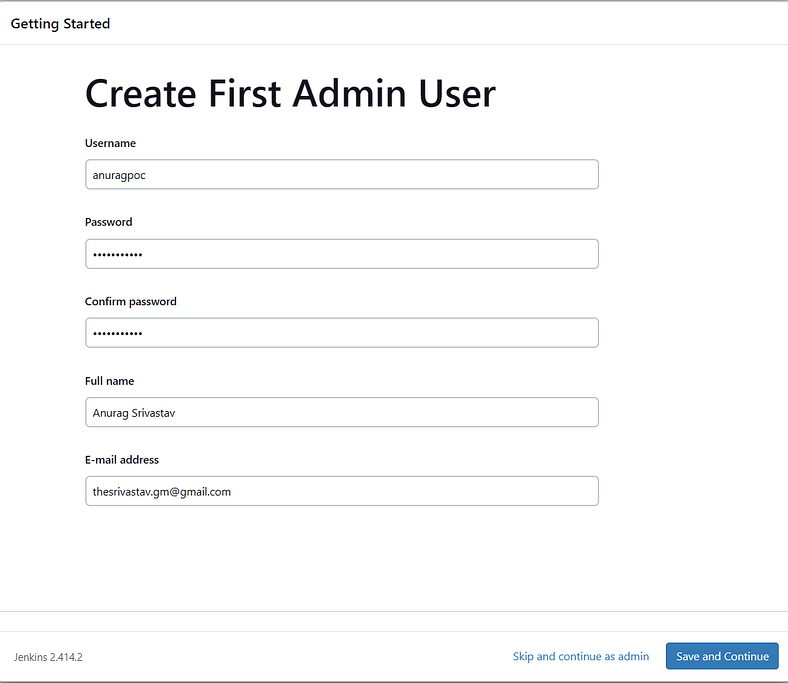
13. Once plugins are installed, it’ll ask to create first Admin user. Fill the details and click on Save and Continue.
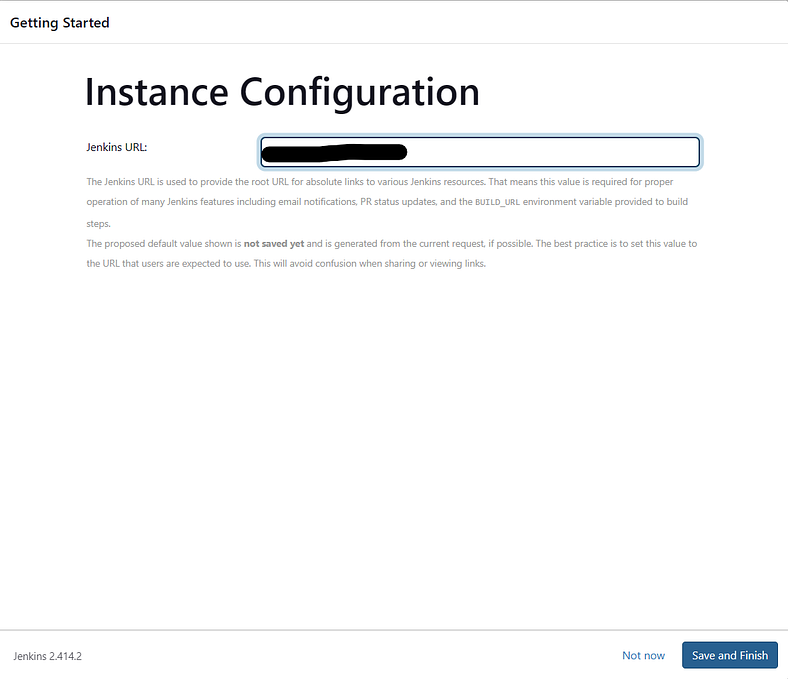
14. After this, do not change the URL in the next page if you are accessing via HTTP. Leave it as it is and click on Save and Finish.
And then click on Start using Jenkins.
15. Voila! We have successfully deployed our Jenkins Instance which is running as a Docker Container inside our Machine.